This article serves as a professional guide on how to create a web application using HTML and CSS. It provides in-depth insights, beginner-friendly explanations, and step-by-step instructions to help you design a functional web interface from scratch.
A web application is not magic — it starts with simple building blocks. Every major platform you use today began with basic HTML structure and CSS styling. Even complex systems rely on these foundations.
In this guide, we will explore how to design a simple web app interface without frameworks, without JavaScript, and without advanced tools. You’ll understand how real web apps are structured.
Let’s explore it together!
Table of Contents
What is a Web Application?
A web application is an interactive software that runs inside a web browser.
Unlike a simple website, a web app allows users to:
- log in
- submit forms
- interact with dashboards
- manage data
- use tools
Examples:
| Platform | Type |
|---|---|
| Gmail | Email web app |
| Trello | Project management |
| Google Docs | Online editor |
| Admin dashboards | Business tools |
Even these advanced apps still rely on HTML and CSS for layout and design.
Tools You Need Before Starting
You don’t need expensive software.
You only need:
- A text editor (VS Code recommended)
- A web browser (Chrome / Firefox)
- Basic folder on your computer
- Curious to learn
That’s it.
How HTML and CSS Work Together?
Think of a web app like a house.
- HTML (structure): HTML builds walls, rooms, and layout.
- CSS (decoration): CSS adds colors, fonts, spacing, and design.
HTML example:
<h1>Welcome</h1>
CSS example:
h1 {
  color: blue;
}
Together → beautiful interface.
How to Create a Web Application Using HTML and CSS?
Your first web application doesn’t require advanced tools — just HTML, CSS, and the willingness to build something from scratch.
1. Create Project Folder
Create a folder:
web-app-project
Inside it, create:
index.html
style.css
Folder structure:
web-app-project/
  index.html
  style.css
2. Basic HTML Structure
Open index.html
<!DOCTYPE html>
<html lang="en">
<head>
  <meta charset="UTF-8">
  <title>My Web Application</title>
  <link rel="stylesheet" href="style.css">
</head>
<body>

  <header class="header">
    <h1>My Dashboard</h1>
  </header>

  <div class="container">

    <aside class="sidebar">
      <ul>
        <li>Home</li>
        <li>Profile</li>
        <li>Settings</li>
      </ul>
    </aside>

    <main class="content">
      <h2>Welcome User</h2>
      <p>This is your web application interface.</p>

      <button class="btn">Click Me</button>
    </main>

  </div>

</body>
</html>
This builds:
- header
- sidebar
- main content
- button
You now have a web app skeleton.
3. Add CSS Styling
Open style.css
* {
  margin: 0;
  padding: 0;
  box-sizing: border-box;
  font-family: Arial, sans-serif;
}

.header {
  background: #222;
  color: white;
  padding: 15px;
  text-align: center;
}

.container {
  display: flex;
  min-height: 100vh;
}

.sidebar {
  width: 200px;
  background: #333;
  color: white;
  padding: 20px;
}

.sidebar ul {
  list-style: none;
}

.sidebar li {
  margin: 15px 0;
  cursor: pointer;
}

.content {
  flex: 1;
  padding: 40px;
  background: #f5f5f5;
}

.btn {
  padding: 10px 20px;
  background: #f52a50;
  color: white;
  border: none;
  cursor: pointer;
  margin-top: 20px;
}
Now refresh the browser.
You built a dashboard interface.
That’s a real web app layout.
4. Add Cards (UI Components)
Inside <main>add:
<div class="card">
  <h3>Analytics</h3>
  <p>View performance data</p>
</div>

<div class="card">
  <h3>Reports</h3>
  <p>Download insights</p>
</div>
CSS:
.card {
  background: white;
  padding: 20px;
  margin: 20px 0;
  border-radius: 8px;
  box-shadow: 0 2px 5px rgba(0,0,0,0.1);
}
Now you have UI cards.
This is how admin panels are designed.
5. Responsive Design (Mobile Friendly)
Add at the bottom of CSS:
@media (max-width: 768px) {
  .container {
    flex-direction: column;
  }

  .sidebar {
    width: 100%;
  }
}
Your web app now works on mobile.
Professional apps always include responsiveness.
6. Preview Your First Web Application
Congratulations — you just built your first web application interface using HTML and CSS.
Open your browser and refresh the page. You should now see a clean dashboard layout with a header, sidebar, content area, buttons, and cards. This is the foundation of how real admin panels and SaaS dashboards are designed.
Below is what your web application should look like:
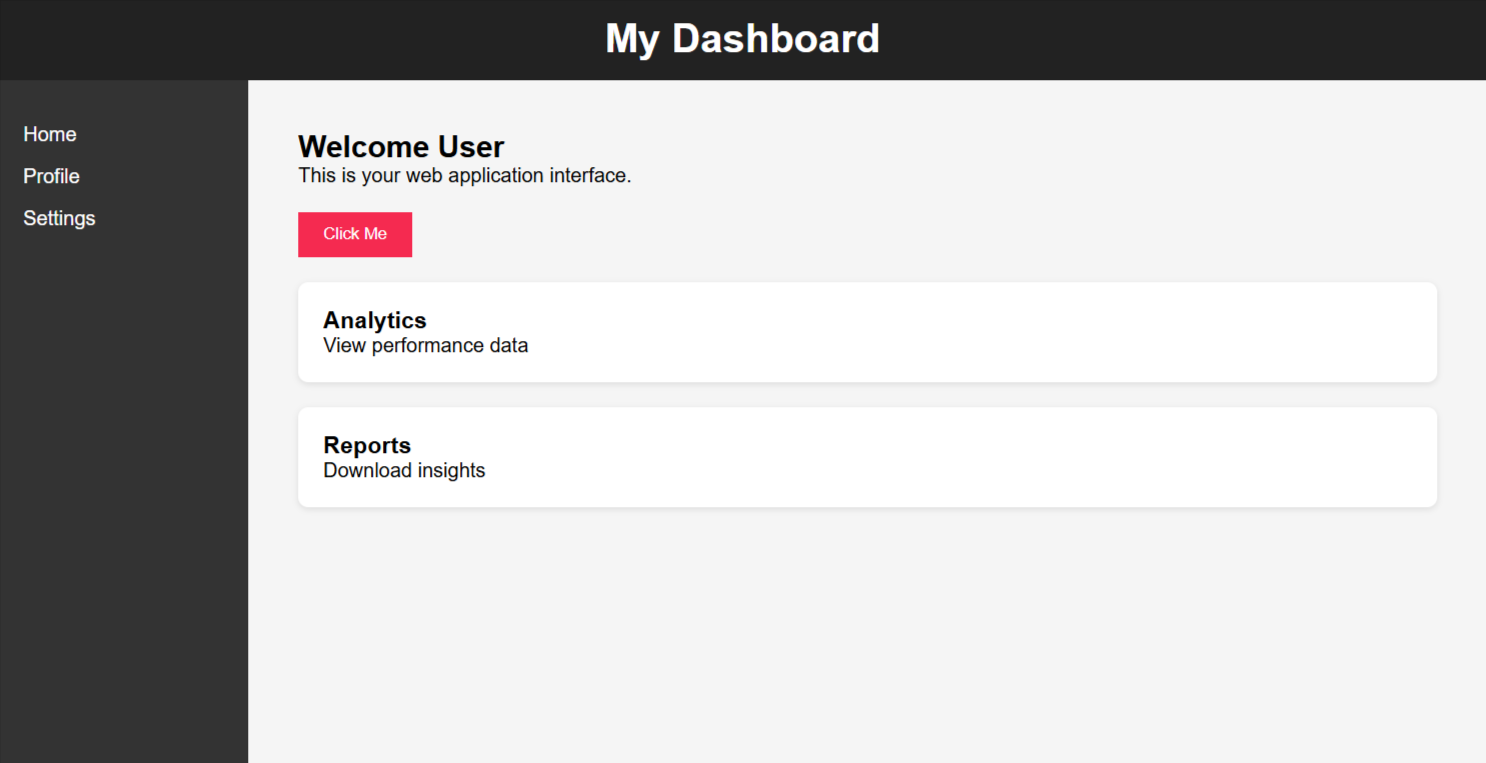
Congratulations! Your first web application now looks like a professional dashboard interface.
Best Practices for HTML & CSS Web Apps
- Use semantic HTML tags
- Keep CSS organized
- Avoid inline styling
- Make mobile-first layouts
- Use consistent spacing
- Keep file structure clean
- Comment your code
Good habits = professional developer.
Common Beginner Mistakes
- Copy-paste messy code
- No folder structure
- Ignoring responsiveness
- Using only divs
- No naming consistency
- Overcomplicated CSS
Simple is powerful.
Can You Build a Full Web App Using Only HTML & CSS?
Yes — but with limits.
You can build:
- dashboards
- UI layouts
- landing interfaces
- admin panels
- prototypes
But real functionality needs:
- JavaScript
- backend server
- database
HTML + CSS = visual layer.
Still extremely important.
5+ Best Tools That Make Web App Design Easier
The right tools can dramatically speed up your workflow and make web app design smoother, cleaner, and more efficient — here are some of the best options beginners should start with.
1. VS Code — The Most Popular Code Editor
Visual Studio Code (VS Code) is a free code editor used by millions of developers worldwide. It is lightweight, powerful, and perfect for beginners.
It helps you:
- write HTML & CSS faster
- detect errors automatically
- organize files
- preview code easily
- Install useful extensions
Key beginner extensions:
- Live Server → auto refresh browser
- Prettier → format code cleanly
- HTML CSS Support → autocomplete suggestions
- Color Highlight → preview CSS colors
Example workflow:
You write code → save file → browser refreshes instantly → see result.
This saves hours and makes learning smoother.
Why beginners love VS Code:
- clean interface
- easy to use
- free forever
- works on Windows, Mac, Linux
It’s the industry standard for modern web development.
2. Figma — Design Before You Code
Figma is a web-based UI design tool. Think of it as Photoshop for web apps — but simpler and focused on interface design.
Before coding, professionals design layouts in Figma to:
- plan dashboards
- design buttons
- test color schemes
- create app wireframes
- visualize user flow
Instead of randomly coding, you design first, then build.
This improves:
- consistency
- user experience
- professional look
- design clarity
Even beginners can use Figma to sketch a simple layout before writing HTML.
Example:
Design sidebar + header in Figma
- replicate it in HTML/CSS
- clean development process
Figma teaches you design thinking, which separates amateurs from professionals.
3. Bootstrap — Ready-Made UI Components
Bootstrap is a CSS framework that gives you pre-built UI elements.
Instead of designing everything from scratch, you can use:
- navigation bars
- buttons
- cards
- forms
- grids
- modals
Example Bootstrap button:
<button class="btn btn-primary">Click Me</button>
One line of code → styled button instantly.
Benefits:
- mobile responsive by default
- saves time
- beginner friendly
- professional layouts
- widely used in companies
Bootstrap is perfect when:
- You want fast results
- You’re learning layout basics
- building prototypes
- creating admin dashboards
It teaches structure while reducing complexity.
4. Tailwind CSS — Utility-Based Styling
Tailwind CSS is a modern styling framework based on utility classes.
Instead of writing custom CSS files, you style directly in HTML using classes.
Example:
<div class="bg-blue-500 text-white p-4 rounded">
  Welcome to my app
</div>
This means:
- blue background
- white text
- padding
- rounded corners
Tailwind advantages:
- fast UI development
- consistent spacing
- no messy CSS files
- modern design system
- highly customizable
It’s used by startups and SaaS companies because it scales well.
Beginners may find it strange at first, but once you understand it, development becomes very fast.
5. GitHub — Version Control & Backup
GitHub is not just a website — it’s a developer’s safety net.
It helps you:
- Save project history
- track changes
- undo mistakes
- collaborate with others
- backup code online
Think of GitHub as Google Drive for developers — but smarter.
Example scenario:
- If you accidentally break/lost your code. You can restorethe previous version instantly
- Professionals never work without version control.
- Learning GitHub early makes you industry-ready.
- Even beginner projects should be uploaded to GitHub.
- It builds a portfolio and protects your work.
6. CodePen — Live Playground for Experiments
CodePen is an online editor where you can write HTML, CSS, and JS directly in the browser.
It’s perfect for:
- quick experiments
- testing animations
- UI prototypes
- sharing code snippets
- learning from others
No installation required.
Just open a browser → start coding.
Beginners use CodePen to:
- Practice small projects
- understand CSS behavior
- remix other developers’ work
- learn visually
It removes technical barriers and encourages experimentation.
5+ Real-World Use Cases of HTML & CSS Web Apps
HTML and CSS are not just beginner tools — they power the visual foundation of many real-world web applications used by companies, startups, and digital platforms every day.
1. Company Dashboards
Businesses use dashboards to track performance, analytics, and internal operations. These dashboards often display charts, reports, user activity, and system status.
Before any complex backend logic is added, companies first design the interface using HTML and CSS. This allows teams to:
- visualize the layout
- test navigation flow
- design data cards
- structure admin panels
- Create a professional UI
Large corporate dashboards may later include JavaScript and databases, but the interface foundation always starts with HTML and CSS.
Even billion-dollar companies prototype dashboards this way.
2. Startup Prototypes
Startups move fast. They don’t build full complex systems on day one. Instead, they begin with prototypes — simple working interfaces that show the idea.
HTML + CSS prototypes help founders:
- pitch ideas to investors
- Demonstrate app structure
- test user experience
- collect early feedback
- validate product direction
A prototype doesn’t need backend functionality. It just needs a realistic interface that shows how the final product might look.
Many successful startups began with a simple HTML/CSS mock dashboard.
The goal is clarity, not perfection.
3. SaaS Admin Panels
Software-as-a-Service platforms rely heavily on admin panels. These panels allow businesses to manage users, subscriptions, analytics, and system settings.
Every SaaS dashboard begins as a structured interface:
- sidebar navigation
- top header
- content panels
- buttons and forms
- responsive layout
All of this is built using HTML and CSS first.
Developers create a reusable UI framework that can later be connected to backend logic.
If you’ve ever used:
- Shopify admin
- WordPress dashboard
- Google Analytics
- CRM tools
You’ve interacted with HTML + CSS at work.
4. Portfolio Systems
Developers and designers build portfolio web apps to showcase their work. These systems often include:
- project galleries
- case study pages
- interactive layouts
- animations
- personal dashboards
A strong portfolio demonstrates UI skills — and HTML/CSS is the core of that presentation.
Hiring managers often judge a developer’s skill based on how clean and responsive their interface feels.
A polished HTML/CSS portfolio can open real career opportunities.
5. Landing Interfaces
Landing pages are technically mini web apps. They guide users through an experience:
- marketing funnels
- signup flows
- onboarding screens
- product showcases
- interactive sections
Companies design landing interfaces using HTML and CSS to optimize:
- user engagement
- conversion rates
- readability
- mobile responsiveness
A well-designed interface directly impacts revenue.
This is why businesses invest heavily in front-end design.
6. Design Mockups & UI Prototypes
Designers often convert Figma mockups into HTML/CSS prototypes. These prototypes allow teams to:
- preview interactions
- test spacing and layout
- simulate user journeys
- present live demos to clients
Static images don’t always show how a design behaves. HTML/CSS prototypes make designs feel real and interactive.
This step bridges the gap between design and development.
It’s a critical part of modern product workflows.
7. UI Testing Environments
Before launching large systems, teams create isolated UI environments to test:
- layout behavior
- responsiveness
- accessibility
- color contrast
- component consistency
These testing interfaces are pure HTML and CSS.
They help developers catch visual bugs before adding complex logic.
Professional teams treat UI testing as seriously as backend testing.
Learning Path After This
Once comfortable:
- Learn JavaScript
- Understand APIs
- Learn React / Vue
- Learn backend (Node / PHP)
- Build full-stack apps
HTML + CSS = your foundation.
Never skip it.
FAQs:)
A. Yes, for layout and interface design.
A. Yes, it’s the perfect starting point.
A. 2–4 weeks with practice.
A. Every single day.
A. No. Learn fundamentals first.
Conclusion:)
Creating a web application using HTML and CSS is not complicated — it’s about understanding structure, layout, and design step by step. Once you master these basics, every advanced framework becomes easier to learn.
“Great developers aren’t built by frameworks — they’re built by mastering fundamentals.” — Mr Rahman, CEO Oflox®
Read also:)
- How to Convert PSD to HTML Online: A Beginner-to-Pro Guide!
- How to Create a Website Using HTML on Notepad (With Example)
- How to Host HTML Website on Google Drive: A-to-Z Guide!
Have you tried building a web application interface yet? Share your experience or ask your questions in the comments below — we’d love to hear from you!