This article provides a complete guide on What Is Browser Caching, including how it works, why it is important, its benefits, features, challenges, tools, real-world examples, common mistakes, best practices, and future trends.
In today’s digital world, website speed plays an important role in user experience, SEO, engagement, conversions, and overall website performance. When a visitor opens a website, the browser has to load different resources such as HTML, CSS, JavaScript, images, fonts, icons, and other files.
If the browser downloads all these files again every time the user visits the same website, it can increase loading time and use more internet data. This is where browser caching becomes useful.
Browser caching is a technique that allows a web browser to temporarily store certain website files on the user’s device. When the user visits the same website again, the browser can reuse some of those stored files instead of downloading them again from the server.
For example, if a website logo, CSS file, or JavaScript file has not changed, the browser may load it directly from the local cache. This can help the website load faster and reduce unnecessary requests to the server.
Browser caching is commonly used in business websites, blogs, SaaS platforms, eCommerce stores, web applications, and almost every modern website where performance matters.
However, effective browser caching is not just about storing files for a long time. Website owners and developers also need to understand cache-control headers, cache expiration, ETag, Last-Modified, cache validation, file versioning, and cache busting to ensure users always receive the correct and updated version of website resources.

So, if you want to understand how browsers make websites faster by reusing previously downloaded files, this guide will help you understand the complete concept in simple language.
Let’s explore it together.
Table of Contents
What Is Browser Caching?
Browser caching is a web performance technique in which a web browser stores copies of website resources locally so that they can potentially be reused during future page visits instead of being downloaded again from the server.
These resources may include:
- CSS files
- JavaScript files
- Images
- Web fonts
- Icons
- HTML responses
- Other static or cacheable resources
For example, suppose a website has a logo called:
company-logo.webpWhen someone visits the website for the first time, the browser downloads this image from the server.
If caching rules allow the image to remain fresh for a certain period, the browser can reuse its stored copy when the visitor opens another page containing the same logo.
Instead of:
Browser → Server → Download Logo Againthe process may become:
Browser → Local Cache → Reuse LogoThis can save both time and data.
Why Is Browser Caching Important?
Modern websites can contain dozens or even hundreds of individual resources.
A single webpage may require:
- HTML
- CSS
- JavaScript
- product images
- logos
- fonts
- icons
- background graphics
- third-party libraries
- API responses
Downloading every unchanged resource repeatedly would create unnecessary network activity.
Browser caching helps solve this problem.
Example:
Imagine that a website uses the same:
- logo on 50 pages,
- CSS stylesheet across the entire website,
- navigation JavaScript on every page,
- font files throughout the site.
Without effective caching, these resources may need repeated network transfers.
With appropriate caching, many can be stored and reused.
That is why caching can contribute to a faster experience, particularly for repeat visitors and multi-page browsing sessions.
A Brief History of Browser Caching
Caching has been closely connected with the development of HTTP and the Web.
In the early days of the Internet, connections were much slower than modern broadband and mobile networks. Downloading the same files repeatedly was expensive in terms of both time and bandwidth.
HTTP therefore developed mechanisms that allowed previously received responses to be reused.
Over time, caching became more sophisticated.
Earlier implementations relied heavily on headers such as:
ExpiresLater, Cache-Control provided developers with much more precise control over caching behaviour.
Validators such as:
- Last-Modified
- ETag
made it possible to ask a server whether a stored resource was still valid without necessarily downloading its complete body again.
Modern HTTP caching is standardised in RFC 9111, published in June 2022, which replaced RFC 7234 as the HTTP caching specification.
Today, browser caching works alongside other technologies such as:
- Content Delivery Networks (CDNs)
- service workers
- HTTP/2 and HTTP/3
- compression
- resource versioning
- edge caching
- application caches
- modern build systems
Caching has therefore evolved from a simple performance optimisation into an important part of modern web architecture.
How Does Browser Caching Work?
The easiest way to understand browser caching is to follow a user’s visit step by step.
1. The User Requests a Webpage
Suppose a visitor opens:
https://example.comThe browser sends a request to the website’s server.
The server returns the HTML document.
While reading the HTML, the browser discovers additional resources such as:
- style.css
- app.js
- logo.webp
- font.woff2
The browser then requests those resources as needed.
2. The Server Sends Resources and HTTP Headers
When returning a resource, the server can include HTTP response headers that describe how caching should behave.
For example:
Cache-Control: public, max-age=31536000The Cache-Control header contains directives that control caching behaviour in browsers and shared caches such as proxies and CDNs.
The browser examines these instructions before deciding how the response may be stored and reused.
3. The Browser Stores an Eligible Response
If the response is cacheable, the browser may store it in its local HTTP cache.
For example:
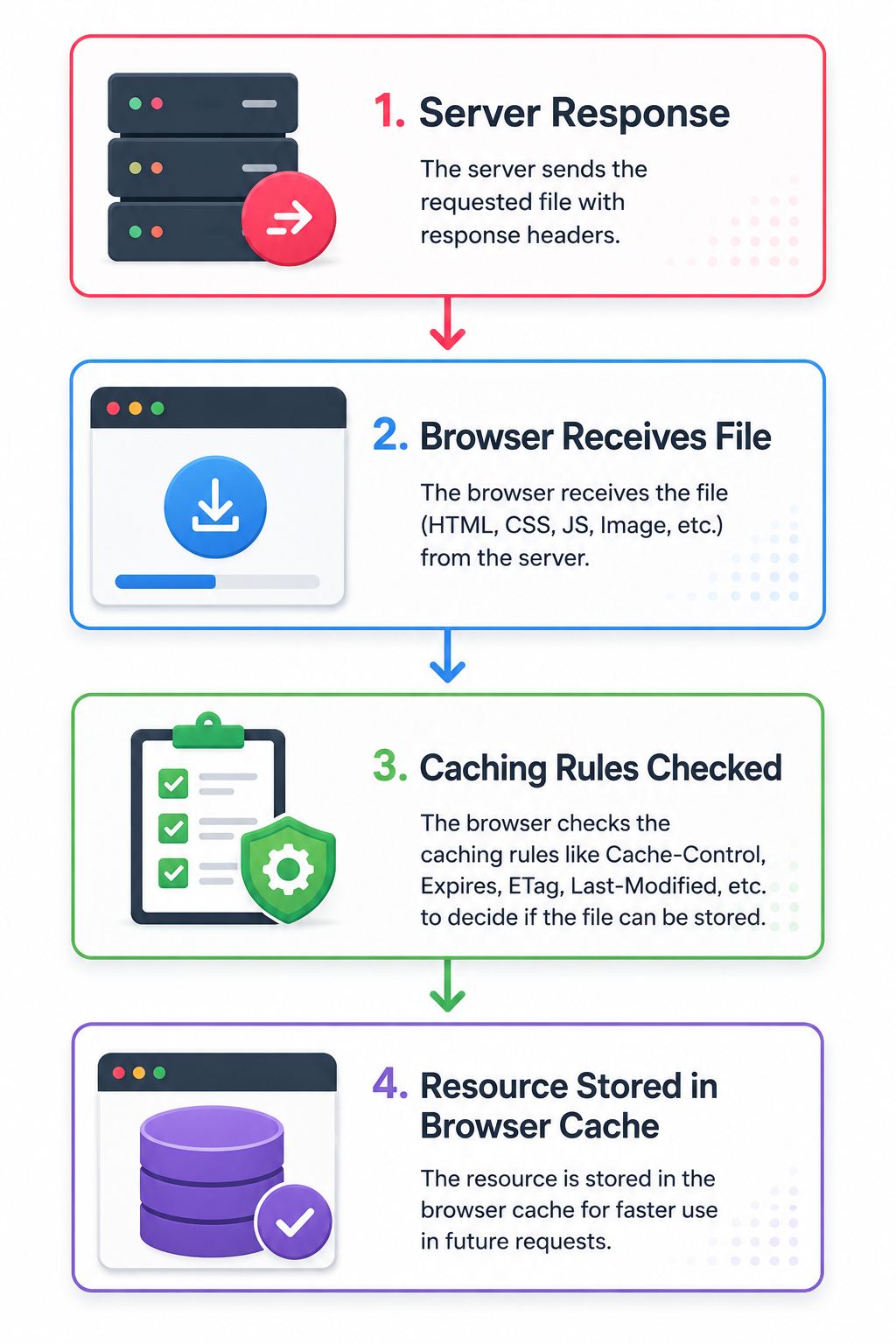
The actual implementation and storage decisions can vary between browsers.
4. The User Requests the Resource Again
Suppose the visitor opens another page on the same website.
That page also needs:
logo.webpBefore downloading the logo again, the browser can check whether it already has a suitable cached response.
5. The Browser Checks Freshness
A cached response can broadly be considered:
Fresh — it can normally be reused according to its caching policy.or
Stale — its freshness lifetime has expired.According to HTTP caching rules, a fresh stored response can potentially be reused without contacting the origin server for validation.
For example:
Cache-Control: max-age=86400means the response has a freshness lifetime of 86,400 seconds, or 24 hours, relative to the relevant cache timing rules.
6. Fresh Content Can Be Reused
If the cached response is still fresh, the browser can normally reuse it directly.
The simplified process becomes:
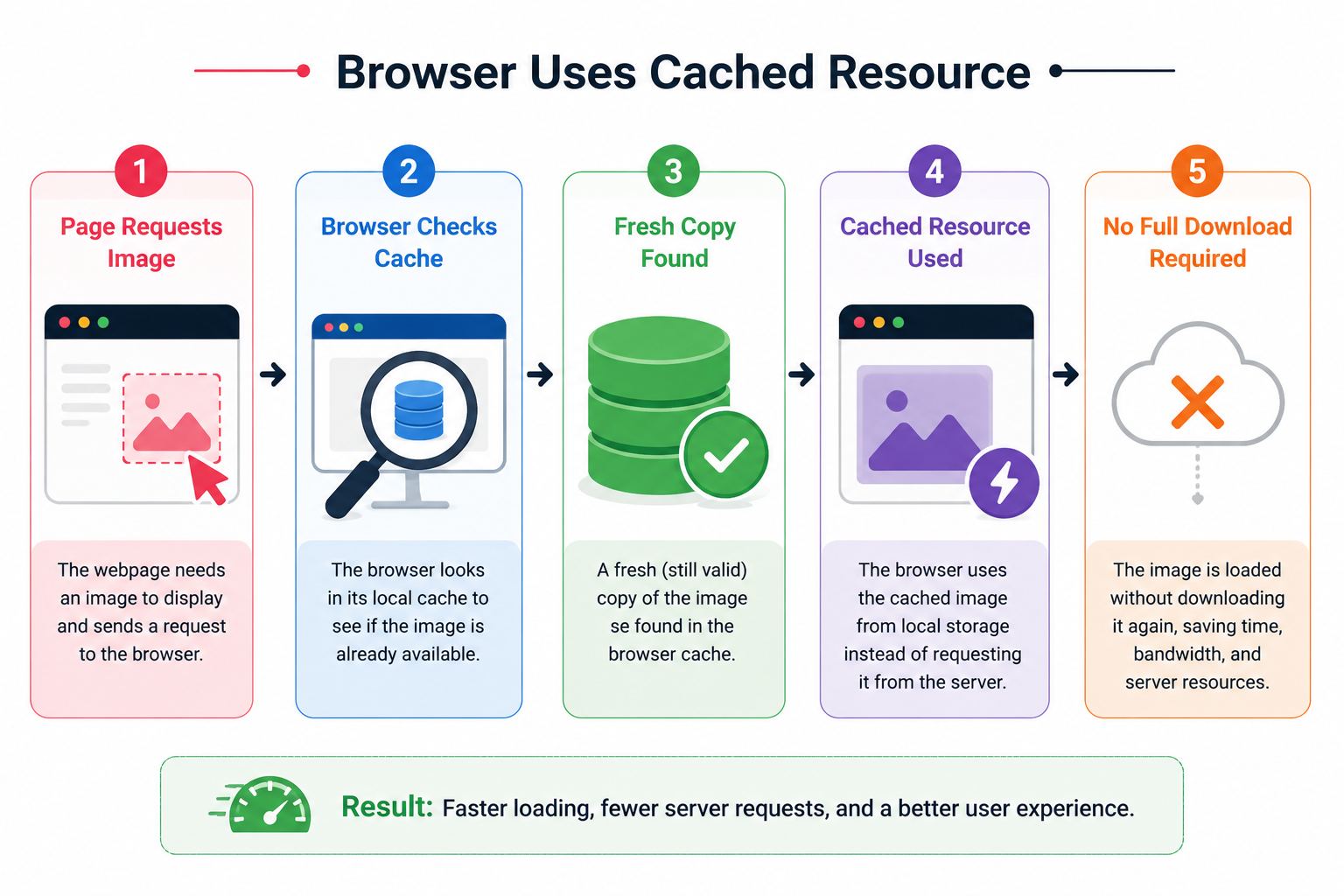
This is where major performance gains can be achieved.
7. Stale Content May Be Revalidated
A stale cached response does not necessarily need to be fully reloaded.
The browser may ask the server:
"Has this resource changed?"This process is known as validation or revalidation.
Common validators include:
- ETag
- Last-Modified
8. Server Confirms Whether the Resource Changed
Suppose the browser has an ETag for a resource.
It can send:
If-None-Match: "33a64df5"If the resource has not changed, the server may respond:
304 Not ModifiedA 304 response does not include the full representation body, allowing the browser to continue using its existing cached copy while avoiding retransmission of the entire resource.
If the resource has changed, the server can instead return the latest version, normally with a 200 OK response.
Browser Caching Workflow
A simplified browser caching workflow looks like this:
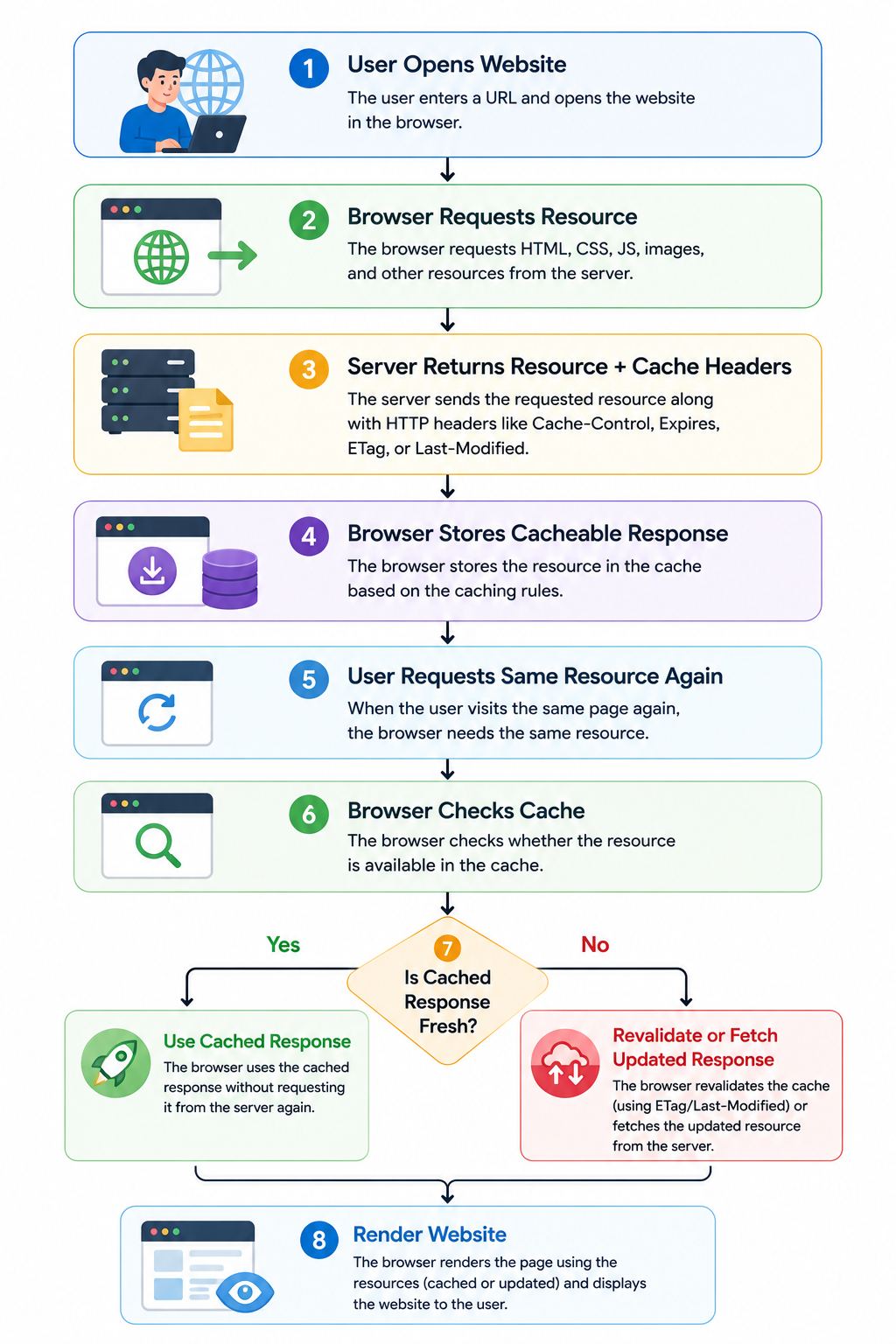
This process can happen automatically in milliseconds.
Important Browser Caching Headers
Understanding browser caching becomes much easier once you understand the main HTTP headers involved.
| Header | Main Purpose |
|---|---|
| Cache-Control | Defines caching rules |
| Expires | Specifies an expiration time |
| ETag | Identifies a version of a resource |
| Last-Modified | Indicates when a resource was modified |
| Vary | Helps caches distinguish response variants |
| Age | Indicates how long a response has been in a cache |
Let’s understand the most important ones.
Cache-Control is one of the most important headers for modern HTTP caching.
Example:
Cache-Control: public, max-age=31536000It can contain multiple directives.
Max-age Example:
Cache-Control: max-age=86400It specifies a freshness lifetime in seconds.
Here:
86,400 seconds = 24 hours.Public Example:
Cache-Control: public, max-age=86400This indicates that the response may be stored by shared caches as well as private caches, subject to HTTP rules.
Private Example:
Cache-Control: privateThis restricts storage to private caches rather than shared caches.
It can be useful for personalised content.
no-cache:
A very common misunderstanding is that no-cache means:
"Do not cache this resource."That is not its actual meaning.
no-cache allows storage but requires validation before reuse under the directive’s normal semantics.
MDN specifically recommends patterns using no-cache with validators for resources that should remain up to date while still benefiting from conditional requests.
no-store:
no-store is different.It tells caches not to store the response.
This should be used when storing a response is inappropriate, especially where sensitive information is involved.
immutable:
Example:
Cache-Control: public, max-age=31536000, immutableimmutable indicates that the response will not change while it is fresh.
This works especially well with versioned assets.
For example:
app.8f73a1.jsIf the JavaScript changes, the application generates another URL:
app.2b94c7.jsThe old file can therefore have a long cache lifetime because changed content gets a different URL.
What Is ETag?
An ETag, or entity tag, is an identifier associated with a particular version of a resource.
Example:
ETag: "abc123"When the cached response becomes stale, the browser can send:
If-None-Match: "abc123"The server compares the value against the current version.
If they match, it can respond:
304 Not ModifiedIf the content has changed, the server can return the updated resource.
ETags can therefore reduce unnecessary transfer of unchanged resources. MDN notes that the exact method used to generate an ETag is not specified; servers may use mechanisms such as content hashes, timestamps, or revision identifiers.
What Is Last-Modified?
The Last-Modified header provides the date and time when the origin server believes the resource was last modified.
Example:
Last-Modified: Mon, 24 Aug 2026 06:30:00 GMTA browser may later send:
If-Modified-Since: Mon, 24 Aug 2026 06:30:00 GMTIf the resource has not changed, the server may return:
304 Not ModifiedLast-Modified is generally less precise than ETag for identifying exact content versions, but it remains useful as a validator and is also used elsewhere in the web ecosystem.
Browser Cache vs Server Cache vs CDN Cache
These terms are often confused.
| Caching Type | Where It Exists | Main Purpose |
|---|---|---|
| Browser Cache | User’s browser/device | Reuse resources for that user |
| Server Cache | Website infrastructure | Reduce repeated backend processing |
| CDN Cache | Distributed edge servers | Serve resources closer to users |
| Application Cache | Application layer | Reduce expensive calculations/data requests |
1. Browser Cache
Stored on or managed by the user’s browser.
2. Server Cache
May store generated pages, database results, objects, or other application data on server-side infrastructure.
3. CDN Cache
A CDN can cache eligible resources at edge locations closer to visitors.
For example:
User in Delhi

↓

Nearby CDN Edge

↓

Cached Resource
rather than always:
User in Delhi

↓

Origin Server in Another Region
Browser caching and CDN caching can complement each other.
Browser Caching vs Cookies
Browser caching and cookies are completely different concepts.
- Browser cache primarily stores reusable web responses and resources.
- Cookies are small pieces of data associated with websites and are commonly used for functions such as sessions, preferences, authentication state, and other application behaviour.
Clearing a browser’s cache and clearing cookies can therefore have different effects.
Browser Caching vs Local Storage
Another common confusion is between browser cache and Web Storage.
| Browser Cache | Local Storage |
|---|---|
| Primarily controlled through HTTP caching behaviour | Controlled using JavaScript/Web APIs |
| Stores cacheable HTTP responses/resources | Stores key-value application data |
| Used mainly for response reuse/performance | Used for persistent client-side data |
| Freshness/revalidation may be HTTP-driven | Application controls data lifecycle |
They solve different problems.
Major Features of Browser Caching
The major features of browser caching focus on storing, managing, validating, and reusing website resources efficiently.
- Local Resource Reuse: Previously downloaded resources can potentially be reused without downloading their complete contents again.
- Automatic Cache Management: Browsers automatically manage their HTTP caches according to standards, server instructions, browser policies, available storage, privacy protections, and other factors.
- Freshness Control: Developers can define how long responses should remain fresh.
- Conditional Requests: ETag and Last-Modified allow browsers to validate stale resources efficiently.
- Resource-Specific Policies: Different resource types can use different strategies. For example, HTML: Cache-Control: no-cache. Versioned CSS: Cache-Control: public, max-age=31536000, immutable.
- Integration with HTTP: Browser caching is part of HTTP behaviour rather than an isolated browser trick.
- Cache Validation: Stale resources can often be checked without downloading the complete content again.
Benefits of Browser Caching
Browser caching offers important benefits for both visitors and website owners.
1. Faster Repeat Page Loads
One of the biggest advantages is faster loading during repeat visits.
If large static resources are already cached, the browser may avoid downloading them again.
This can reduce the amount of work required to render subsequent pages.
2. Reduced Bandwidth Usage
Suppose a website has:
- 500 KB JavaScript
- 200 KB CSS
- 1 MB images
- 300 KB fonts
That is approximately 2 MB of resources.
If reusable resources remain cached, subsequent visits may require significantly less data transfer.
This can be especially valuable for mobile users and slower connections.
3. Reduced Server Requests
If browsers can reuse fresh resources locally, fewer requests need to reach the origin server.
This can reduce unnecessary infrastructure work.
4. Better Scalability
Imagine 100,000 users repeatedly downloading an unchanged 300 KB JavaScript bundle.
Efficient caching can dramatically reduce repeated transfer requirements.
For high-traffic websites, that can support better scalability.
5. Improved User Experience
Users expect websites to respond quickly.
Caching can make navigation feel more responsive because commonly used assets may already be available locally.
6. Better Performance for Multi-Page Websites
Suppose an eCommerce website has:
- 10,000 products
- One shared CSS file
- One main JavaScript bundle
- Common fonts
- One logo
Users may visit many product pages during one session.
Caching shared resources prevents needless repeated transfers.
7. Lower Infrastructure Costs
Less bandwidth and fewer origin requests can potentially reduce:
- Data transfer
- Server load
- CDN origin traffic
- Computing requirements
The exact savings depend on the website architecture and traffic pattern.
8. Supports Website Performance Optimisation
Caching is one part of a broader performance strategy that may also include:
- Image optimisation
- Lazy loading
- Compression
- CDN delivery
- Code splitting
- Resource prioritisation
- Minification
No single optimisation guarantees good performance, but caching is an important component.
Challenges and Limitations of Browser Caching
Caching is powerful, but incorrect configuration can cause problems.
1. Users May Receive Outdated Resources
Suppose you cache:
style.cssfor one year.
You update the file tomorrow but keep exactly the same URL.
Some users may continue using their cached copy according to the caching policy.
This can create broken layouts or inconsistent behaviour.
Solution:
Use content hashing or file versioning.
Old:
style.cssBetter:
style.a781b2.cssWhen the content changes:
style.f924cd.cssThe changed URL forces a request for the new resource.
2. Cache Invalidation Can Be Difficult
One of the classic challenges in computing is determining when cached content should be replaced.
Developers need to decide:
- What should be cached?
- For how long?
- When should it be revalidated?
- What happens when content changes?
- How will updated files get new URLs?
A good caching strategy answers all of these questions.
3. Dynamic Content Requires Care
Not every response should receive aggressive caching.
Examples include:
- Account dashboards
- Shopping carts
- Personalised pages
- Payment information
- Rapidly changing inventory
- User-specific API responses
Caching personalised content incorrectly can create serious privacy or correctness problems.
4. Third-Party Resources Have Their Own Policies
A website may use external:
- Analytics scripts
- Advertising scripts
- Widgets
- Fonts
- APIs
- Embeds
You may not control their HTTP caching policies.
5. Browser Behaviour Can Differ
Although HTTP caching standards provide common semantics, browsers may differ in areas such as:
- Storage limits
- Eviction
- Reload behaviour
- Private browsing behaviour
- Privacy protections
- Implementation details
Developers should therefore test rather than assume.
Practical Browser Caching Strategy
There is no single caching policy suitable for every website.
However, a practical modern approach can look like this.
| Resource | Example Strategy |
|---|---|
| Versioned CSS | Long cache lifetime + immutable |
| Versioned JS | Long cache lifetime + immutable |
| Versioned images | Long cache lifetime |
| Fonts | Long cache lifetime when appropriate |
| HTML | Revalidate frequently |
| User dashboard | Private/revalidation-oriented policy |
| Sensitive response | Consider no-store |
| Frequently changing API | Short lifetime or revalidation |
Policies should always match the application’s actual update requirements.
Example Browser Caching Configuration
Consider this versioned JavaScript file:
app.4f28cd.jsA server might return:
Cache-Control: public, max-age=31536000, immutableBecause its filename changes whenever the content changes, keeping that exact version cached for a long time is generally safe.
MDN describes this cache-busting pattern as a way to give versioned subresources long cache lifetimes, including the use of immutable.
For an HTML document whose URL remains unchanged, a different strategy may be more appropriate:
- Cache-Control: no-cache
- ETag: “page-version-123”
This allows the browser to store the document but validate it before reuse.
What Is Cache Busting?
Cache busting means changing the URL of a resource whenever its content changes.
For example:
Version 1:
main.css?v=1Version 2:
main.css?v=2A stronger build-system approach often uses content hashes:
bmain.a8f92c.cssWhen the file changes:
main.d72b11.cssThe browser sees a new URL and treats it as a different resource.
This lets developers combine:
Long Cache Lifetime + Immediate UpdatesIt is one of the most useful techniques for modern static assets.
What Is stale-while-revalidate?
Another useful caching technique is:
stale-while-revalidateExample:
Cache-Control: max-age=60, stale-while-revalidate=300The basic idea is that a cache can serve an eligible stale response immediately during the permitted stale window while revalidating it in the background.
This can balance:
Speed + Freshnessweb.dev explains that the technique allows cached content to be returned quickly while a network revalidation updates the cache for future requests.
It can be useful where slightly stale information is acceptable.
However, developers should carefully consider whether serving stale information is appropriate for the specific resource.
Real-World Examples of Browser Caching
Understanding caching through practical examples makes the concept easier.
1. Business Website
A digital agency website uses:
- logo
- CSS
- JavaScript
- Icons
- Fonts
These files rarely change.
They can use long-lived caching when appropriately versioned.
Result:
Returning visitors can reuse many resources.2. eCommerce Website
Consider an online store.
Its logo, fonts, design CSS, icons, and versioned application bundles can be strongly cached.
But:
- product price
- inventory
- shopping cart
- account information
may require much more careful caching policies.
The website therefore uses different strategies for different types of content.
3. News Website
A news site’s JavaScript, fonts, logos, and UI assets may remain unchanged for long periods.
However, headlines change frequently.
Static assets can receive longer caching, while news data may use shorter caching or revalidation.
4. SaaS Application
A SaaS application deploys:
dashboard.94ad71.jsBecause the filename contains a build hash, it can be cached for a long period.
After an update, the new build becomes:
dashboard.51b829.jsThe HTML points to the new file.
Users therefore receive the new application bundle without requiring the old URL to be invalidated manually.
5. Blog Website
A WordPress blog may contain:
- Theme CSS
- Plugin JavaScript
- Featured images
- Fonts
- Logos
- Article HTML
Static assets can benefit from appropriate browser caching.
HTML should generally remain capable of reflecting updates quickly, particularly when articles are regularly edited.
Browser Caching and SEO
Browser caching is not a direct shortcut to higher search rankings.
However, good caching can contribute to the broader technical performance of a website.
Faster and more efficient websites can provide:
- Better user experience
- Smoother navigation
- Lower data consumption
- More efficient resource loading
Technical SEO should therefore consider caching alongside:
- Core Web Vitals
- Responsive design
- Crawlability
- Indexing
- Structured data
- Image optimisation
- JavaScript performance
- Server response times
Caching should be treated as a performance optimisation, not as an isolated ranking trick.
Browser Caching and Core Web Vitals
Browser caching can particularly help repeat navigation and repeat visits because reusable assets may already be available.
However, remember:
Browser caching does not automatically solve Core Web Vitals problems.For example, a website can still have poor performance because of:
- Render-blocking resources
- Oversized images
- Excessive JavaScript
- Slow backend processing
- Layout shifts
- Poorly optimised fonts
- Third-party scripts
Caching must therefore be part of a complete performance strategy.
Tools to Check Browser Caching
Several tools can help developers inspect caching behaviour.
1. Chrome DevTools
Chrome DevTools is one of the easiest options.
Open:
Developer Tools → NetworkReload the page and inspect individual resources.
Look at response headers such as:
- Cache-Control
- ETag
- Last-Modified
- Age
- Expires
You can also inspect whether resources were served from browser caches.
2. Firefox Developer Tools
Firefox includes network inspection tools that allow developers to inspect:
- requests
- response headers
- caching behaviour
- timing information
3. PageSpeed Insights
PageSpeed Insights can help identify performance opportunities involving static assets and inefficient resource delivery.
Caching recommendations should be evaluated in the context of the actual website rather than applied blindly.
4. Lighthouse
Lighthouse can audit various aspects of web performance and help developers identify inefficient resource delivery.
It is particularly useful during development and performance testing.
5. WebPageTest
WebPageTest provides detailed network waterfalls.
You can compare:
First Viewand
Repeat Viewto understand how caching affects subsequent page loads.
6. Browser Network Waterfall
Sometimes the most useful tool is simply the browser’s Network panel.
Inspect:
- transfer size
- request count
- response headers
- status codes
- timing
- cached responses
This gives a practical view of what is actually happening.
How to Test Browser Caching Step by Step
You can perform a simple caching test using your browser.
- Open your website.
- Open Developer Tools.
- Select the Network tab.
- Reload the page.
- Select a CSS, JavaScript, image, or font resource.
- Inspect its response headers. Look for: Cache-Control. ETag: Last-Modified.
- Reload the page normally.
- Compare the resource’s network activity and transfer behaviour.
- Test again after deploying a changed version. This final step is important.
A caching strategy is only successful if both situations work:
unchanged files → efficiently reusedand
changed files → reliably updatedExpert Tips for Implementing Browser Caching
1. Cache Versioned Static Assets Aggressively
Resources with content-hashed filenames are excellent candidates for long cache lifetimes.
Example:
app.91c284.js2. Avoid Extremely Long Caching for Unversioned Changing Files
If:
style.csscan change while keeping the same URL, a one-year freshness lifetime can create update problems.
Version the URL first.
3. Treat HTML Differently from Static Assets
HTML often needs to reflect current content and references to newly deployed assets.
Do not automatically give HTML the same long-lived policy as hashed JavaScript or images.
4. Use Validators
Where revalidation makes sense, use:
- ETag
- Last-Modified
RFC-aligned guidance recommends validators because they can prevent unnecessary retransmission when content remains unchanged. MDN notes that, where possible, sending both can provide useful validation information across the HTTP ecosystem.
5. Understand no-cache vs no-store
Remember:
no-cache ≠ do not storeno-cache generally means the response needs validation before reuse.
no-store means the response should not be stored.
Confusing these directives is one of the most common caching mistakes.
6. Never Treat Every Resource the Same
A website’s:
- Logo
- HTML
- Shopping cart
- CSS
- User dashboard
- API response
have very different requirements.
Create policies according to resource behaviour.
7. Test After Every Major Deployment
Always test caching after:
- Redesigns
- CDN changes
- Server migrations
- Framework updates
- Cache plugin changes
- Reverse proxy changes
- Major deployments
Incorrect caching can cause users to receive old frontend files.
8. Coordinate Browser and CDN Caching
Browser caching and CDN caching are related but separate layers.
A good architecture considers:
Origin Server

↓

CDN / Shared Cache

↓

Browser Cache
Policies at one layer can affect another.
Common Browser Caching Mistakes
Many website owners and developers make browser caching mistakes that can negatively affect website performance instead of improving it.
1. Caching Everything for One Year
Long caching sounds attractive, but it is dangerous for resources that change without URL versioning.
Better approach: Long-cache versioned static assets.
2. Not Versioning CSS and JavaScript
Suppose you update:
main.jsbut keep its URL unchanged.
Users with a fresh cached copy may continue running the previous version.
Use:
main.a12f9c.jsinstead.
3. Using no-store Everywhere
Developers sometimes use no-store because they want users to receive current content.
But this removes caching entirely for those responses.
Where storage is acceptable but freshness must be checked, no-cache plus validators may be more suitable.
4. Caching Personalised Content Publicly
Incorrectly allowing shared caching of user-specific content can create privacy and security risks.
Personalised responses require carefully designed cache policies.
5. Ignoring Third-Party Assets
External resources may have caching policies outside your control.
Measure their impact rather than assuming they behave like your first-party assets.
6. Testing Only the First Page Load
Browser caching provides much of its value during subsequent requests.
Always test both:
Cold/First Visitand
Repeat Visit7. Assuming 304 Means the Browser Used Zero Network
A 304 Not Modified response is efficient, but it still involves communication with the server.
A fresh cached response can avoid that validation round trip.
The two situations are not identical.
8. Assuming Cache-Control Is Optional Best Practice
HTTP can sometimes use heuristic caching when explicit freshness information is absent. However, relying on browser guesses is generally less predictable.
MDN recommends explicitly defining Cache-Control behaviour rather than depending on heuristic caching.
Browser Caching Best-Practice Example
A modern website might use a strategy like:
1. HTML
Cache-Control: no-cachewith:
ETagand/or:
Last-Modified2. Versioned CSS
Cache-Control: public, max-age=31536000, immutable3. Versioned JavaScript
Cache-Control: public, max-age=31536000, immutable4. Versioned Images
Long cache lifetime where appropriate.
5. User-Specific Pages
Cache-Control: private, no-cachedepending on the application.
6. Sensitive Responses
Cache-Control: no-storewhen storage should not occur.
These are general patterns rather than universal configuration rules. Authentication, privacy, deployment architecture, CDN configuration, and application requirements should always be considered.
FAQs:)
A. Browser caching is the process of storing reusable website resources on a user’s device so that the browser can use them again instead of repeatedly downloading the same content.
A. Yes. When configured correctly, it can reduce data transfer, network requests, server workload, and repeat loading time.
A. Common examples include CSS, JavaScript, images, fonts, icons, and certain HTML or API responses. Whether a response should be cached depends on its HTTP caching policy and application requirements.
A. It can significantly improve repeat visits and navigation when reusable resources are already stored locally.
A. Browser caching is mainly a performance optimisation. It can contribute to a better user experience and efficient website delivery, but it should not be considered a direct ranking technique.
A. There is no universal duration. Versioned static assets may be cached for months or a year, while frequently changing resources may require short lifetimes or revalidation.
A. Cache expiration refers to the point at which a cached response is no longer considered fresh according to its caching policy.
A. The browser may revalidate it with the server or request a new response, depending on the caching rules.
A. It means the server has determined that the client’s cached representation remains valid for the conditional request, so the full response body does not need to be transferred again.
A. no-cache allows storage but requires validation before normal reuse. no-store instructs caches not to store the response.
A. Cache busting changes a resource’s URL whenever its content changes, commonly by using a version or content hash in the filename.
A. Yes. Poor configuration can result in outdated CSS, JavaScript, images, or other content being served to users.
A. Browser cache and saved passwords are separate types of browser data. Clearing only cached files normally does not mean deleting saved passwords, although users should carefully review the options selected in their browser’s clearing-data interface.
A. No. Browser cache exists on the user’s side, while CDN caching generally occurs on distributed edge infrastructure.
A. Browsers provide automatic caching functionality, but servers and applications should send appropriate HTTP caching instructions to achieve predictable and safe behaviour.
Conclusion:)
Browser caching is an important part of modern website performance because it allows browsers to store and reuse website resources such as CSS, JavaScript, images, fonts, icons, and other cacheable files instead of downloading the same resources repeatedly from the server.
When configured correctly, browser caching can help improve website loading speed, user experience, bandwidth efficiency, server performance, and repeat-visit performance. It is especially useful for websites and applications where users frequently visit multiple pages or return regularly.
However, an effective caching strategy is not simply about keeping every file cached for a long period. Developers should correctly use Cache-Control, ETag, Last-Modified, cache expiration, file versioning, cache busting, and validation techniques according to the type of resource being served.
As modern websites continue to use CDNs, edge computing, service workers, SaaS applications, APIs, and increasingly complex frontend technologies, browser caching will remain an important part of web performance optimisation in 2026 and beyond.
Whether you are a website owner, developer, SEO professional, blogger, or beginner learning web development, understanding browser caching can help you build and maintain faster, more efficient, and user-friendly websites.
Hopefully, this article has helped you understand What Is Browser Caching, how it works, its benefits, challenges, examples, tools, best practices, and its role in modern web development.
“Browser caching makes websites faster by remembering what users have already downloaded and reusing it when they return.” — Oflox®
Read also:)
- What Is Domain Migration? A-to-Z Guide for Beginners!
- What Is Website Wireframe? A-to-Z Guide for Beginners!
- What Is Jamstack Development? A-to-Z Guide for Beginners!
If you still have any questions related to Browser Caching, feel free to ask them in the comments below. We will be happy to help you. Thanks for reading!